Email to Ticket Automation That Works With Any CRM
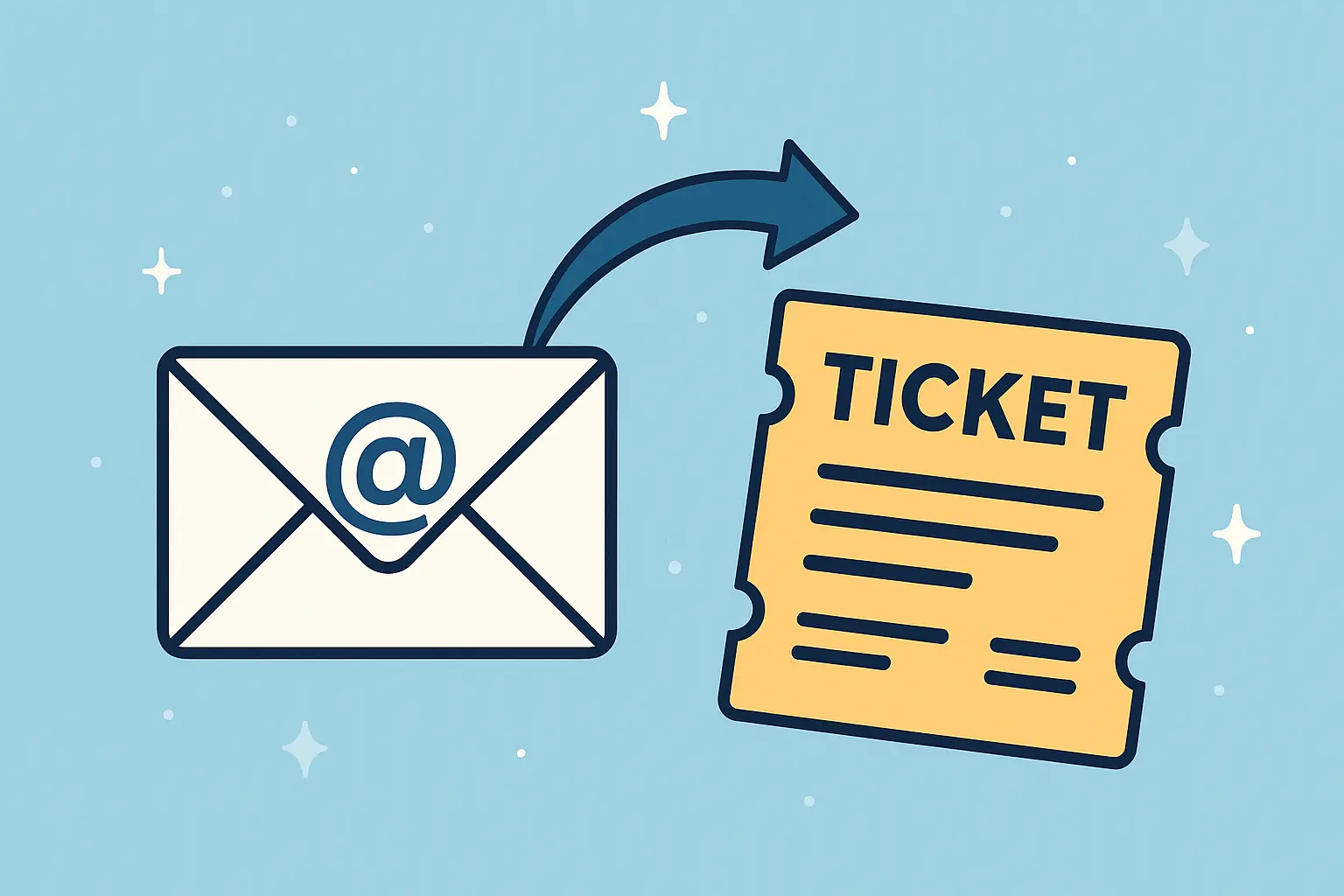
Turn every help email into a tracked ticket with one simple flow. No plugins, no lock in, no drama. This blueprint uses a shared inbox, a keyword listener, a smart parser, and a write step that can point to any CRM you use today.
What Problem This Solves
Teams lose emails. Plugins cost extra. Different CRMs behave in different ways. You want one intake pattern that never changes even when the CRM changes. The result is a clean audit trail, faster response times, and fewer manual steps.
- Users email a simple address like tickets@yourdomain.com
- Subject or body includes a small keyword like [ticket] or #ticket
- The flow extracts the description, sets a default assignee, records the real reporter
- A ticket is created and the sender gets a confirmation with the ticket ID
This is CRM agnostic. I can wire it to SuiteCRM, Salesforce, Super Easy CRM, HubSpot, or a custom API. If you want it built in a day, skip to the consult section below.
Architecture At A Glance
Save this visual for your team. It is the exact sequence we will build.
Prerequisites
- O365 shared mailbox like tickets@yourdomain.com
- Power Automate access for the shared mailbox
- Data store. Start with a SharePoint list named Unified Tickets. SQL or Dataverse also works
- Optional CRM adapter if you want to sync to a live CRM in real time
SharePoint List Schema
Create a list called Unified Tickets. Use the fields below. You can rename in your UI later without breaking the flow.
| Column | Type | Purpose |
|---|---|---|
| Title | Single line | Short description or cleaned subject |
| Description | Multiple lines | Main body text |
| ReporterEmail | Single line | Sender email |
| ReporterName | Single line | Sender display name |
| AssignedToEmail | Person or Text | Default assignee or router value |
| Priority | Choice | Low, Normal, High |
| Status | Choice | New, In Progress, Resolved, Closed |
| SourceMessageId | Single line | Internet Message Id for dedupe |
| ThreadKey | Single line | Conversation Id or InReplyTo for updates |
| CRMRoute | Choice | SuiteCRM, Salesforce, SuperEasyCRM, None |
| CRMExternalId | Single line | Id returned by the target CRM |
| Tags | Single line | Optional labels like VPN, Billing |
Build The Flow Step By Step
1) Trigger
Use When a new email arrives in a shared mailbox (V2). Point it to your shared inbox. Include attachments set to Yes.
2) Keyword Guardrail
Add a Condition that checks the subject or body for a keyword. I like subject contains [ticket] or body contains #ticket.
// simple example in a single expression style
or(contains(triggerOutputs()?['body/subject'],'[ticket]'),
   contains(toLower(triggerBody()?['bodyPreview']),'#ticket'))
3) Normalize The Sender
Grab the real human so reports are accurate. Created By might be the automation user, Reporter should be the sender.
ReporterEmail = triggerBody()?['from']['emailAddress']['address']
ReporterName  = triggerBody()?['from']['emailAddress']['name']
4) Extract The Description
Prefer a tiny email format that humans can remember. The flow still works if they forget.
#ticket
#desc: My VPN drops every 10 minutes after I connect to Chicago. Happens since Monday.
#priority: High
#tags: VPN, Chicago
If #desc: exists, split on it and take the last segment. Else use the first paragraph from the body preview.
// Body as text with a safe fallback
coalesce(triggerBody()?['bodyPreview'], triggerBody()?['body'])

// Grab everything after "#desc:"
last(split(outputs('BodyText'),'#desc:'))
5) Create A Short Title
// Remove the tag and trim
trim(replace(triggerOutputs()?['body/subject'],'[ticket]',''))
6) Set The Assignee
Hardcode a default like helpdesk@yourdomain.com or pull from a small routing list keyed by domain or tag.
7) Dedupe And Thread
SourceMessageId = triggerOutputs()?['body/internetMessageId']
ThreadKey       = coalesce(triggerOutputs()?['body/conversationId'], triggerOutputs()?['body/inReplyTo'])
Run a Get items on the list filtering by SourceMessageId. If any rows exist, skip create to avoid duplicates.
8) Create The Ticket Row
Map Title, Description, ReporterEmail, ReporterName, AssignedToEmail, SourceMessageId, ThreadKey, Priority, Status.
9) Attachments
Loop attachments and store them in a document library under a folder named with the List Item ID. Link back to the ticket in a comment or a hyperlink column.
10) Auto Acknowledge
Reply to the sender with the ticket number and a friendly update link.
Subject: Ticket #@{items('Create_item')?['ID']} received
Body: We got it. Your ticket number is @{items('Create_item')?['ID']}. We will reply soon.
11) Optional CRM Adapter
Use a Switch on CRMRoute. Post JSON to your CRM endpoint, then update CRMExternalId on success.
{
  "title": "@{items('Create_item')?['Title']}",
  "description": "@{items('Create_item')?['Description']}",
  "reporter": "@{items('Create_item')?['ReporterEmail']}",
  "assigned_to": "@{items('Create_item')?['AssignedToEmail']}",
  "priority": "@{items('Create_item')?['Priority']}",
  "source_message_id": "@{items('Create_item')?['SourceMessageId']}"
}
Security, Mapping, And Governance
- Allow list of sender domains. External senders go to a review folder
- Only impersonate users when the email matches a known contact record
- Attachment filtering by extension and size
- Write a small TicketAudit list with flow run id, decisions, and errors
Reply To Update The Ticket
A second flow can watch for replies. If In-Reply-To or References matches your SourceMessageId or ThreadKey, append the new content as a comment and move the status to Waiting Agent or Customer Replied.
Need This Built For Your Team
I build this exact pattern for coaches, healthcare, and local service businesses. Most installs are done in one day with screenshots and a short handoff video.
- Shared inbox setup and permissions
- Routing rules and priority mapping
- Attachment storage and retention policy
- Optional adapter to your live CRM
FAQ
Does Created By become the person who sent the email
Created By is often the automation user. Use ReporterEmail and ReporterName to capture the real human. If your CRM supports impersonation, set it. If not, keep Created By as the automation user and report on Reporter.
Can I run this with SQL instead of SharePoint
Yes. The flow writes to a single Tickets table with the same columns. Swap the Create item step for an Insert row. Everything else stays the same.
Will this work if users forget the keyword
Use a fallback path that moves the email to a NoKeyword folder with an auto reply that teaches the format. Your core path stays clean.
How do I stop duplicates
Use Internet Message Id for SourceMessageId. Check for an existing row before creating a new one. Replies will share conversation info you can use for threading.
More Free CRM Enhancement Tools Are A Click Away!
If you found our free Power Automate workflow template helpful, you'll love the other content on our site. Once you've got data flowing into your system with little to no human intervention, you'll want to keep. Head over to our free CRM data cleaning tool to purge dirty data before cramming it into your application. And, if you're interesting in faster document processing courtesy of Microsoft's super powerful AI, check out the AI Builder Credit Calculator. This free tool allows you estimate the credits you need for your workflow so you don't go over your token limit. Its the perfect companion for anyone looking to add AI to their workflow.

Posted by: Matt Irving on 9/03/2025
- How to Track Customer Complaints in Your CRM (So They Stop Getting Buried in Notes)
- What to Do With the Business Cards You Just Collected at a Networking Event
- My Post Networking CRM Workout
- Common CRM Types By Industry and What They Use Them For
- Can You Build a CRM for $0? Try Now!
- CRM Breakup Quiz | Should You Leave or Work It Out?
- Admin to Architect | The Evolution of CRM Administrators
- What Is a Headless CRM, Really?
- Role Based Scoping is 10x Better Than Department Scoping in Your CRM
- 4 Things You Can Do Right Now To Make Your CRM Less Annoying
- Why I Run My Job Search Through Super Easy CRM Instead of a Spreadsheet
- Why I Stopped Building Workflows and Started Building Systems
- AI Orchestration For All, Not Just Devs
- Want All the CRM Benefits Without Leaving Your Inbox? Here's How to Build It
- How to Get Your Whole Company Into the CRM
- How to Make Your CRM More Trustworthy (Without Nagging Your Team to Update It)
- Why No One Trusts Your CRM and How To Fix That
- When Your CRM Forgets, It's Expensive, Use Ticket Types Instead
- Do I Need a New Person, or Can My CRM Help?
- Why Most CRM Automations Failed 6 Months Later
- I Thought I Knew How Long Things Took. My CRM Proved Me Wrong
- How to Connect n8n to SuperEasyCRM and Automate Everything in Between
- My Top 5 CRM Automations That Save Hours Per Week
- What Really Happens When You Vibe Code a CRM (And How to Do It Safely)
- Google Sheets to Salesforce Migration Guide (Step-by-Step CRM Data Migration)