I run my business on Google Workspace like a lot of people in the tech space, and since I am always on the hunt for anything that trims time off my day, somewhere along the way I became the guy who tries every AI meeting notetaker that shows up in my feed. I have tested close to 20 of them at this point, and most of them land in one of two buckets: either they produce a summary so generic it could describe any call I have ever been on, or they create so much cleanup work afterward that I would have been faster just taking notes myself. HappyScribe is quickly becoming one of my favorites because it avoids both of those problems, and the rest of this review explains what it does well and how to get its notes into your CRM without turning it into homework.
Before HappyScribe, I was using Gemini's native transcriber, which made sense since I already live in Google Workspace, and to be fair the summaries did show up in my inbox after each call. The trouble is that a lot of my calls are discovery sessions, which are essentially a room full of people telling me everything they hate about their current CRM and everything they expect from the next one. There are usually a lot of people on those calls, each with their own ideas, and I never had the time to pull all of those ideas out of an inbox summary and into my CRM where they could actually shape the project, so most of them quietly died in my email. That experience taught me that the real value of a notetaker is not the transcript at all; it is whether the meeting ever makes it out of the notetaker and into the system your team uses to make decisions every day.
What is HappyScribe, and who is it actually for?
HappyScribe is an AI meeting notetaker that records, transcribes and summarizes your calls, and it fits best for small teams and consultants who live on Zoom, Google Meet or Teams and need clean notes without babysitting a tool.
The company was founded in Barcelona in 2017, so this is not a weekend project that will disappear next quarter, and it reports more than 6 million users and over 41,000 teams. It handles 150+ languages with a stated accuracy of over 95%, which matters more than people think if you ever take calls with clients whose accents trip up the cheaper tools. You connect your Google or Outlook calendar, and the notetaker joins your Zoom, Google Meet and Microsoft Teams calls on its own.
How does HappyScribe work with Google Calendar and Google Meet?
Once your Google Calendar is connected, HappyScribe joins your scheduled Meet calls automatically and is ready up to three minutes before the meeting starts, so there is nothing to remember on your end.
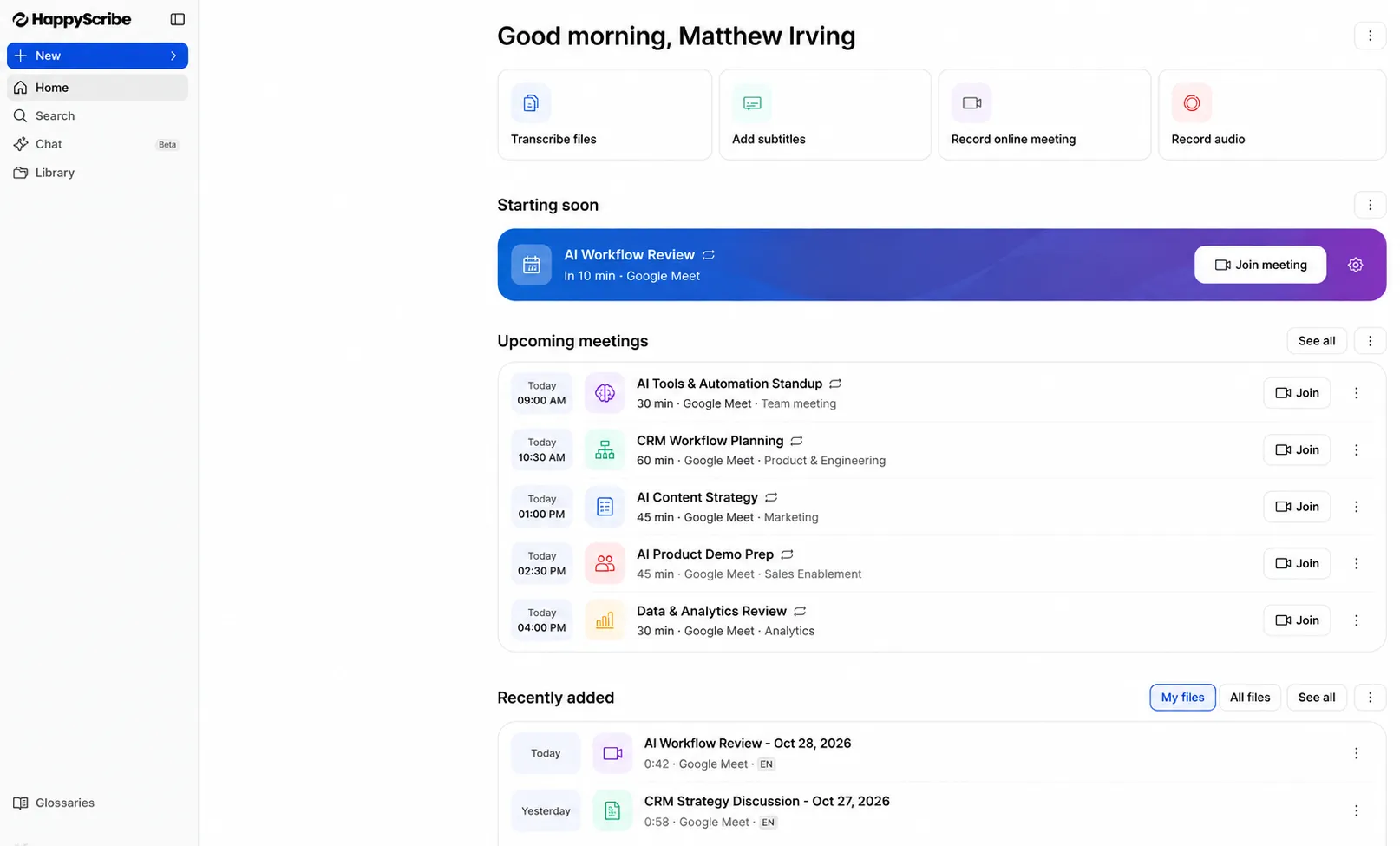
For someone running everything through Google Workspace, this is the part that decides whether a notetaker sticks or gets uninstalled within a week. I connected my calendar, and from that point on the notetaker simply showed up to the calls on it without me having to invite a bot or click a button. When a call is not on my calendar, I paste the meeting link and it sends the notetaker over, and for the calls where a bot sitting in the participant list would feel awkward, there is a browser recorder that captures the meeting without anyone else seeing a new attendee.
The mobile app for iOS and Android covers in-person meetings too, and it records offline and syncs to your account once you have a connection again, which is handy for the coffee meetings and those impromptu ambush meetings from AI-hungry CMOs that never make it onto a calendar invite.
How do you set up HappyScribe so it fits the way you run meetings?
Setup comes down to a few quick choices about how the notetaker joins, who can see your transcripts and which summary template it uses, and getting those right on day one is what keeps it from becoming another tool you have to manage.
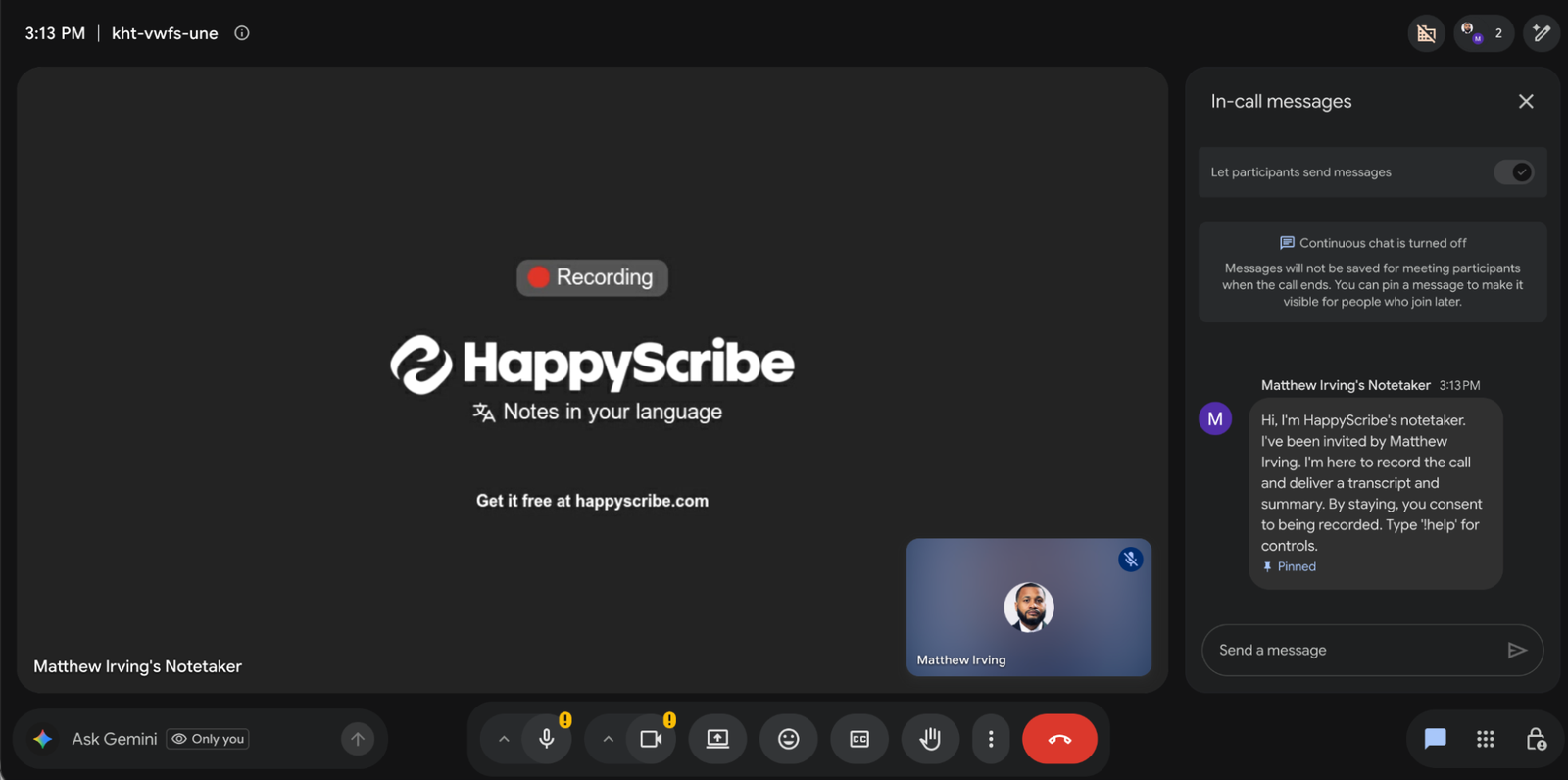
Choose how often you see HappyScribe in your meetings and how it joins them. When it joins a Google Meet call, it shows up as "Matthew Irving's Notetaker" and pins a message in the chat explaining that it is there to record the call and deliver a transcript and summary, that staying in the meeting means consenting to the recording, and that anyone can type !help for controls. That pinned message handles the consent conversation for you, which is one less thing to explain to a room full of client stakeholders at the top of every call.
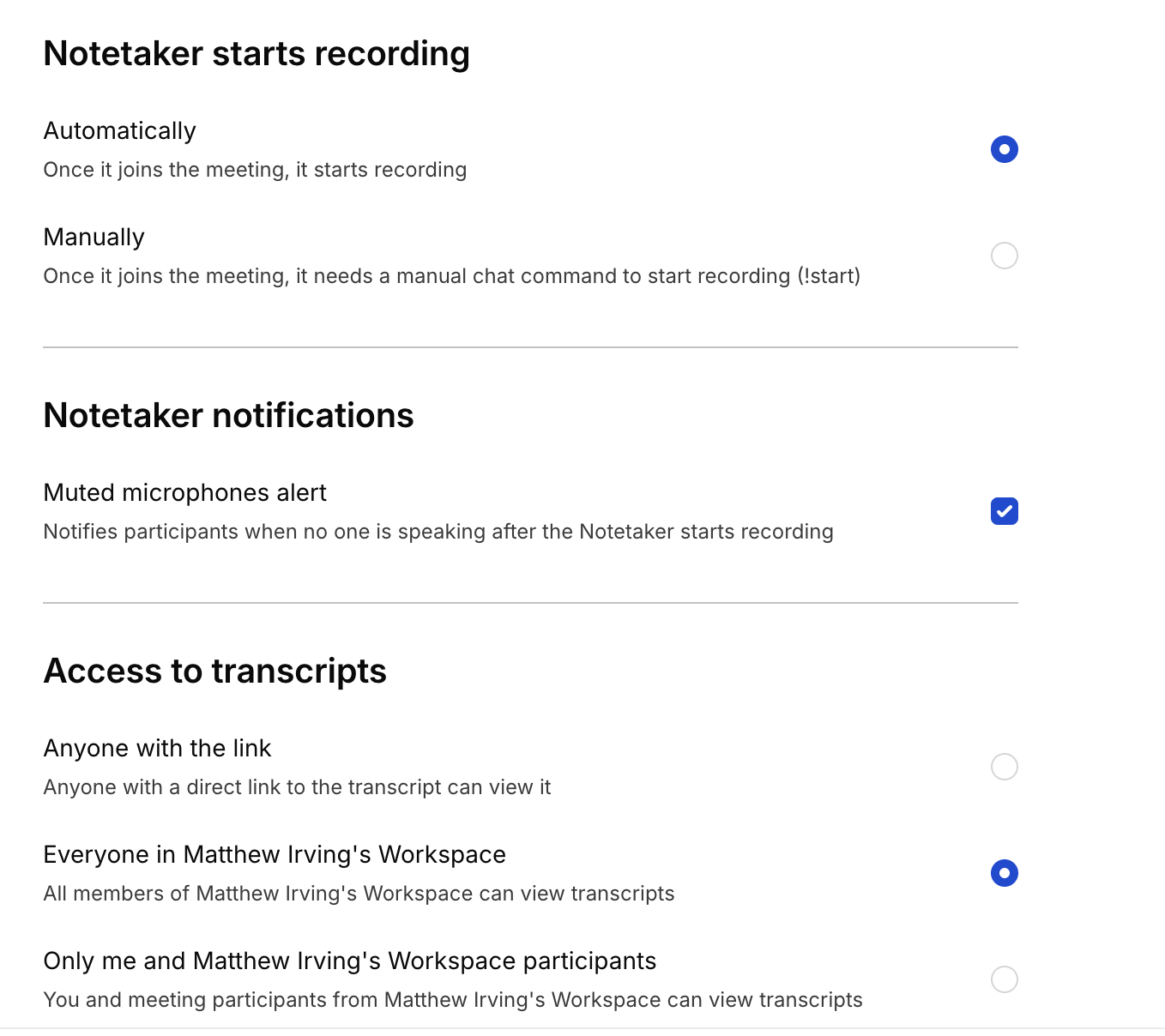
You can have the notetaker start recording automatically as soon as it joins, or set it to wait until someone types !start in the chat, which is a nice option for calls that open with small talk you would rather not have in the transcript. There is also a muted microphone alert that notifies participants when nobody is speaking after recording starts, which is a small touch that catches the classic problem of someone talking into a muted mic for two minutes.
Then, decide who gets access to your transcripts. The options are anyone with the link, everyone in your HappyScribe workspace, or only you and the workspace members who were in the meeting. I set mine to everyone in my workspace, since the whole point for me is getting discovery notes in front of the people who need them rather than locking them in my own account.
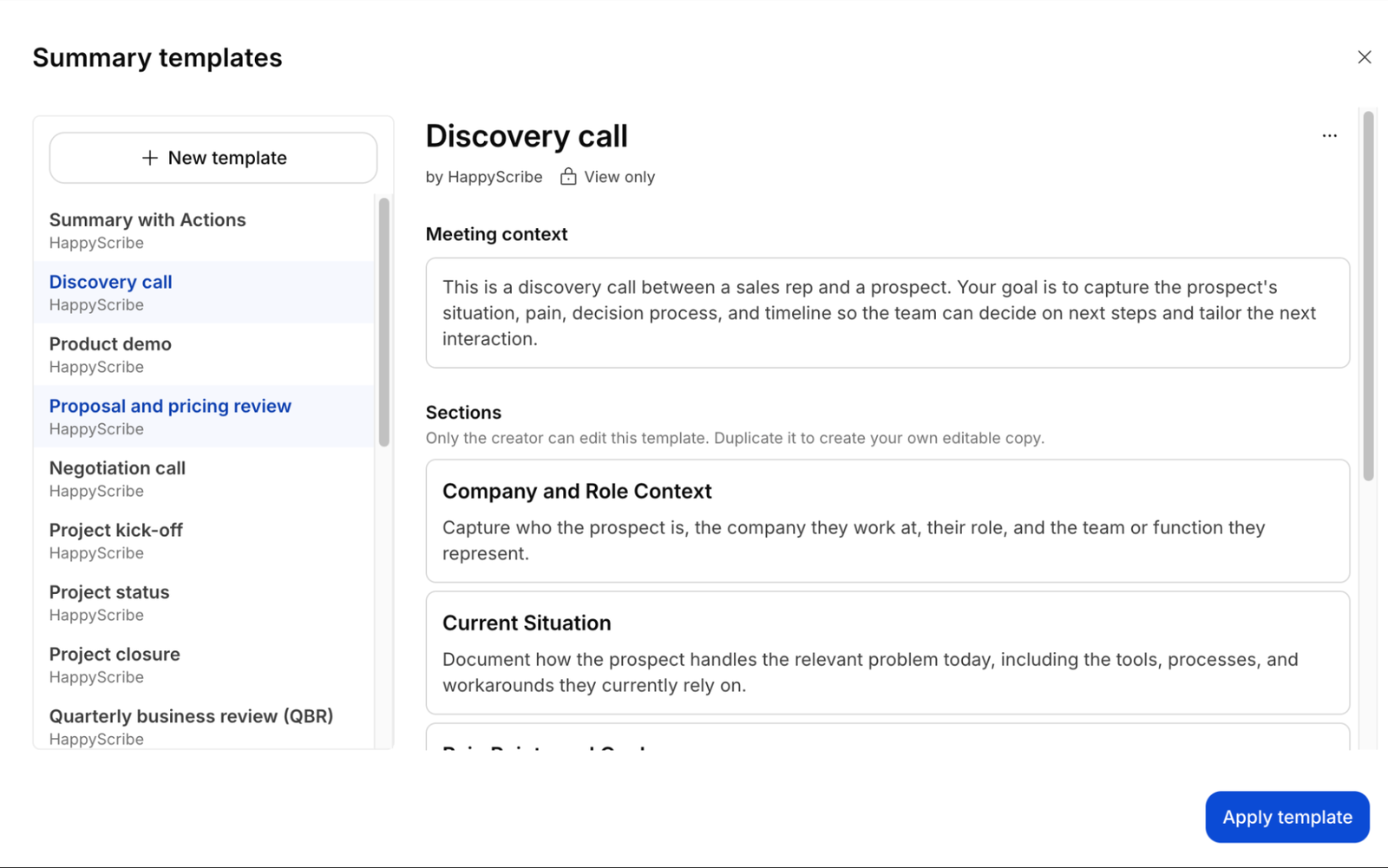
Pick a template (for me, discovery calls is the default). HappyScribe ships with templates for discovery calls, product demos, proposal and pricing reviews, negotiation calls, project kick-offs, QBRs and more, and each one tells the AI what the meeting is for and which sections to fill in. The discovery call template captures the prospect's company and role, their current situation, including the tools and workarounds they rely on today, and their pain points and goals, which lines up almost exactly with what I need from a discovery session. The built-in templates are view only, but you can duplicate one to make your own editable version.
What do you get from HappyScribe after a call ends?
A few minutes after the call wraps, a summary, a list of action items and a full transcript with speaker labels land in your inbox, so the follow-up is already written before you have refilled your coffee.
The speaker labels are what separate a useful transcript from a wall of text, and on a discovery call with a crowd of stakeholders they matter even more. When the operations manager wants one thing and the sales director wants the opposite, I need to know exactly who said what, because those are two different requirements with two different owners, and a summary that blends them together sends the project in the wrong direction. The action items are the piece I lean on the most, because those are the things that actually need to become tasks somewhere, and they show up as a clean list rather than buried inside a paragraph of summary.
If your business has product names, acronyms or industry terms that AI tools love to mangle, the custom glossary is worth ten minutes of setup. You teach it your vocabulary once, and it spells those terms correctly from then on, which saves you from the familiar experience of reading a transcript where your own company name is spelled three different ways.
Can you search across old meetings with HappyScribe Chat?
Yes, and this is the feature that changes how you use your meeting history, because HappyScribe Chat answers plain-language questions across a single call, a folder or your entire library.
Most notetakers treat every call as an island, so the knowledge from last month's meetings is technically saved but practically lost. With Chat, you can ask something like "What did customers say about pricing in the last 10 calls?" and get an answer pulled from the transcripts themselves. For anyone doing sales, discovery or client onboarding, that turns a pile of recordings into something closer to a research tool, and it is the kind of pattern-spotting that usually only happens when someone has the time to reread every call, which nobody does. For my discovery work, being able to ask which complaints about a client's old CRM came up in every session, rather than relying on whoever happened to be loudest, is worth the price of the Pro plan by itself.
Can HappyScribe send meeting notes straight into your CRM?
Not natively yet, since HubSpot is listed as "Soon" on the pricing page, but you can bridge the gap today with Zapier, the HappyScribe API on paid plans or its MCP server, and building that bridge is the single most valuable thing you can do with any notetaker.
This is the question I care about most, because the meeting notes problem is really a CRM problem in disguise. When I talk with business owners at local events, the complaint is almost never that they lack notes; it is that the notes live in someone's inbox and never make it into the system everyone else relies on. That gap is exactly why so many CRMs end up untrusted, which I dug into in my piece on how to make your CRM more trustworthy, and a notetaker only helps if its output lands where the rest of the team can find it.
Here is what HappyScribe offers for that today:
- Zapier connection: HappyScribe connects to more than 5,000 apps through Zapier, so you can route a finished summary into your CRM as a note or turn action items into tasks without writing code.
- API access on paid plans: If you want more control over how the data is mapped, the API lets you build that pipeline directly, which is the route I usually take when I set this up for clients.
- MCP server for AI assistants: The MCP server connects your transcript library to assistants like Claude and ChatGPT, so you can query your meetings from the AI tools you already use.
- Manual exports: From any meeting you can export the transcript in the formats you choose, the summary as a TXT file, the video as an MP4 and the audio as an MP3, so your data is never trapped inside the platform even if you never touch the API.

My honest take is that a native CRM push would make this a much easier recommendation for non-technical teams, and until it arrives, someone on your side needs to own the Zapier or API setup. If getting everyone to actually use the CRM is your bigger headache, my guide on how to get your whole company into the CRM covers the adoption side, and if you would rather have someone wire HappyScribe into your existing system for you, that is the kind of automation work I do every week through Super Easy CRM.
This is exactly the problem I am solving for myself right now. I am building an API integration that takes the notes from my HappyScribe discovery calls and posts them straight into Super Easy CRM, so every pain point and feature request from a room full of stakeholders lands on the right account instead of waiting for me to find an afternoon to copy and paste them. The fact that HappyScribe exposes an API on its paid plans is a big part of why it beat out the other tools I tested, because a notetaker that only emails you a summary leaves the hardest part of the job, getting those ideas into your system, sitting on your plate.
How does HappyScribe compare to Gemini's note taking in Google Meet?
Gemini is the easier choice if every meeting you take is in Google Meet and you only need a summary in your inbox, but HappyScribe wins once you take calls on other platforms, work across languages or need your meeting notes to flow into a CRM.
Since I ran on Gemini's "Take notes for me" before switching, this is the comparison I get asked about the most, and it is a fair question because Gemini is already sitting inside Google Workspace with nothing extra to install. It is built directly into Meet, so there is no bot in the participant list, and when the call ends it saves a Google Doc with the summary, action items and transcript to the organizer's Drive and emails out a recap. Google has also added section customization, so you can choose which parts of the notes you want, and as of August 2026 the Meet app can take notes on in-person meetings too.
The catch is that Gemini is designed around Google's world, and my discovery calls are not always in it. Here is how the two stack up on the things that mattered to me:
| What I compared | HappyScribe | Gemini in Google Meet |
|---|---|---|
| Meeting platforms | Zoom, Google Meet and Microsoft Teams | Built for Google Meet |
| Languages | 150+ | 8, and no support for meetings with more than one spoken language |
| What you need to use it | Free plan available, paid plans from $8.50 a month billed annually | Workspace Business Standard or higher, or Google AI Pro or Ultra on a personal account |
| Where the notes go | Inbox, HappyScribe library, plus transcript, TXT summary, MP4 and MP3 exports | Google Doc in the organizer's Drive plus an email recap |
| Meeting-type templates | Library of templates such as discovery, demo and QBR, plus your own | Choose which sections to include |
| Asking questions across many calls | HappyScribe Chat over a call, a folder or your whole library | Not a built-in part of the Meet notes workflow |
| Your own terminology | Custom glossaries | No glossary feature in the notes settings |
| Getting notes into a CRM | Zapier, API with webhooks on paid plans, MCP server | Work with the Google Doc yourself through Drive |
| In-person meetings | iOS and Android app, records offline | Meet app "Take notes" button on eligible plans |
Gemini details reflect Google's published Meet documentation and announcements as of October 2026.
For my work, the deciding factor was the last mile. Gemini did its job of producing a summary, but that summary landed in a Doc and an email and stayed there, and for discovery sessions full of stakeholders and feature requests, a Doc in Drive is just a nicer-looking place for ideas to get forgotten. HappyScribe gives me webhooks and an API to build on, which is how the notes end up on the right record in Super Easy CRM, the place my clients and I actually make decisions every day. If your team lives entirely inside Google Meet and nobody is asking for those notes anywhere else, Gemini is a perfectly reasonable default and you may not need to pay for anything extra.
How much does HappyScribe cost in 2026?
There is a free plan with unlimited 45-minute recordings, and paid plans start at $8.50 a month billed annually, with Pro at $19 a month annually being the sweet spot for small teams.
| Plan | Monthly billing | Annual billing (per month) | What you get |
|---|---|---|---|
| Free | $0 | $0 | Unlimited meeting recordings, 45 minutes each |
| Basic | $17 | $8.50 | 120 AI minutes a month, 1 seat |
| Pro | $29 | $19 | 600 AI minutes a month, 3 seats, unlimited AI Chat |
| Business | $89 | $59 | 6,000 AI minutes a month, 5 seats |
| Enterprise | Custom | Custom | SSO/SAML, dedicated account management |
Pricing checked on the HappyScribe pricing page on October 20, 2026. Confirm current rates before you buy.
If you are a solo operator, the free plan is a perfectly reasonable way to see whether the summaries fit how you work, and Basic covers light use. Pro is where HappyScribe Chat becomes unlimited, which is the feature I would pay for, although it starts at three seats and that can be more than a one-person shop needs.
Is HappyScribe secure enough for client calls?
HappyScribe is GDPR compliant and SOC 2 Type II certified, encrypts your data in transit and at rest, and does not use your meeting data to train AI models.
Data is encrypted in transit with TLS and at rest with AES-256, and it is stored in EU-based Tier IV data centers, with the details laid out on the HappyScribe security page. The promise not to train on meeting data is the line I look for first with any recording tool, since a lot of client conversations include pricing, contracts and internal problems nobody wants floating around in a training set.
Should you try HappyScribe?
If you run your business on Google Workspace and want meeting notes that are accurate, searchable and ready to act on without a cleanup session afterward, HappyScribe is worth trying, and after close to 20 tools it is one I keep coming back to.
Start with the free plan on a few real client calls, pick the template that matches the kind of meetings you run, set up a glossary so it learns your terminology, and then decide whether Chat and the higher minute limits justify Pro. Just go in with a plan for getting those summaries into your CRM, because a meeting only pays off when what was said shows up in the tool everyone opens to make daily decisions, and notes that never leave your inbox do not do your team much good.
