Builds
Tags:
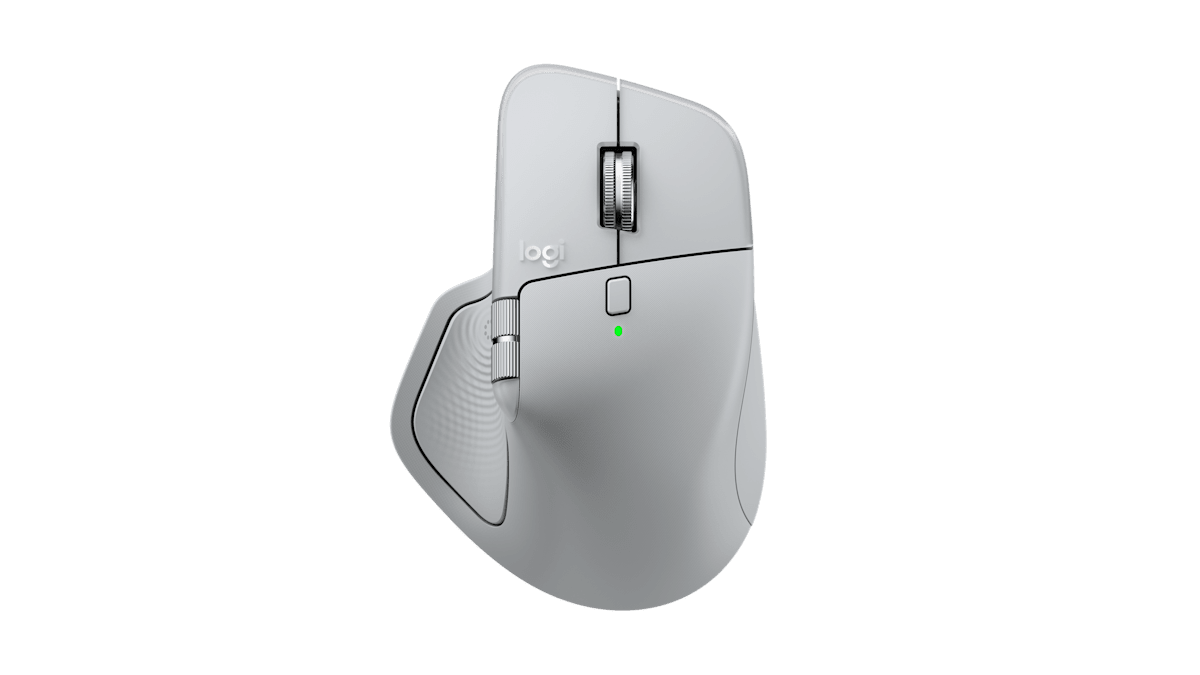 Image © Logitech — source: product page
Get productivity builds, shortcuts, DPI recommendations, a click-speed mini-game, and more.
10-second test. Click the big button as fast as you can. Works with MX Master, touchpad, or trackball.
Pick your monitor resolution and tune DPI. Copy your recommendation in one click.
Tip: higher res → slightly higher DPI; dial back for pixel-perfect design work.
Tip: Use per-app profiles, not global, to avoid conflicts and disaster…
Yes! Logitech has finally ditched the rubberized material that would break apart and get sticky after absorbing a couple pints of nerd sweat. It now has a harder shell more akin to a traditional mouse. And while this may feel less 'premium' to some, it has turned my Mx Master from an occassional peripheral to my daily driver. I do a lot of walking and working. I generally spend the first half of the day with my laptop on my stationary bike or treadmill.
This means I produce way more sweat than I would if I were stationary. Even under normal use, the oils and sweat from my hands would eat away at the Mx Master 3s and turn it gross. Fortunately that is no longer an issue.
No, thanks to the new, hard plastic your crisp, clean, white mouse will not stain like its pale predecessor. The 3 series would turn yellow and become almost chemically stained. The areas around the thumb rest and the the back of the mouse turned an awful yellow color.
There are very little meaningful differences between the various editions of the Mx Master 4. However, of the options, the Mac edition is definitely the worst value. In every other version of the mouse a really adorable USB-C dongle is included, but not for us Apple lovers. Even if you work primarily on Mac OS, go with the standard version, you'll get a dongle and the mouse works just as well as the Mac specific one.
If you really want a black mouse, try and find the Adobe Version offered by Best Buy. Its black, even more so than the Space Black color way the Mac version has. And you get more product for the same price. The only minor difference is that the Mac Mx Master 4 has a two finish. The left and right click have a lighter, transparent finish that gives it a graphite appearance.
If you found this guide helpful, please bookmark it and share with your friends, family, and co-workers. I'm constantly adding new builds and tricks to this guide as I discover them, so be sure to check back every once in a while. Overall, I'm enjoying my Mx Master 4 Adobe Edition. In fact, it has official dethroned the Roccat Kone XP, my previous vote for best productivity mouse. And, while you're here, give your new MX Master 4 a workout in Glyde CRM, the super lightweight, free CRM that lives and breathes in your browser. Do downloads or sign up required!